LiveKit is a popular open-source project, and although I spend most of my time in the LiveKit developer community, I also try to keep an eye on what developers are saying about LiveKit in other communities like Reddit and YouTube. Recently I saw a couple of external reports claiming "LiveKit audio struggles if you also share video". I strongly suspected this wasn't the case, but instead of just responding "no, you're wrong", I dug into the claim.
If you're using LiveKit for realtime applications with audio and video, you might be wondering: does your audio quality degrade as you add video tracks? The answer is No, but let me walk you through my tests.
LiveKit's architecture prevents audio degradation#
Before getting to the tests, it's worth understanding how LiveKit insulates audio from the video stream at the architectural level.
Audio is its own RTP stream. WebRTC carries audio and video on separate RTP streams, each with its own SSRC, sequence numbers, and jitter buffer. At the protocol level there is no "shared pipe" where heavy video frames push audio packets out of the way; the transport multiplexes them on the wire, but the streams stay independent end-to-end.
Opus is small. LiveKit publishes audio with Opus, which targets roughly 24–64 kbps for speech. Video, by comparison, can run anywhere from 200 kbps for a thumbnail tile to 25 Mbps for a 4K screen share. The order-of-magnitude asymmetry means a congestion controller can claw back vastly more bandwidth by shaving video than by dropping audio, a tradeoff simulcast makes possible.
Opus carries its own resilience. LiveKit also enables RED by default for audio, which, combined with Opus's in-band forward error correction, lets the audio stream tolerate ~20–30% packet loss without retransmission. For more on how LiveKit handles audio and video, see the advanced media docs.
Enough theory, what happens in reality#
I forked the LiveKit Meet sample, which is a Next.js app that wraps the LiveKit React components into a complete conferencing UI. I connected to LiveKit Cloud using multiple participants, each in its own browser tab. Data flowed from the source tab (my PC) to the LiveKit Cloud SFU and back to the recipient tab (also on my PC).
On the client, I used these options:
| Setting | Value |
|---|---|
| Adaptive stream | true |
| Dynacast | true |
| Video simulcast | true |
| Audio RED | true |
| DTX | false* |
*DTX is disabled so the audio bitrate stays continuous and easy to read on the charts.
I added a quality overlay to the Meet sample that shows realtime stats for the audio and video tracks, plus graphs for trends. For reproducibility, I also added an option to replace the microphone with a pre-recorded WAV file of human speech.
Baseline scenario: audio only#
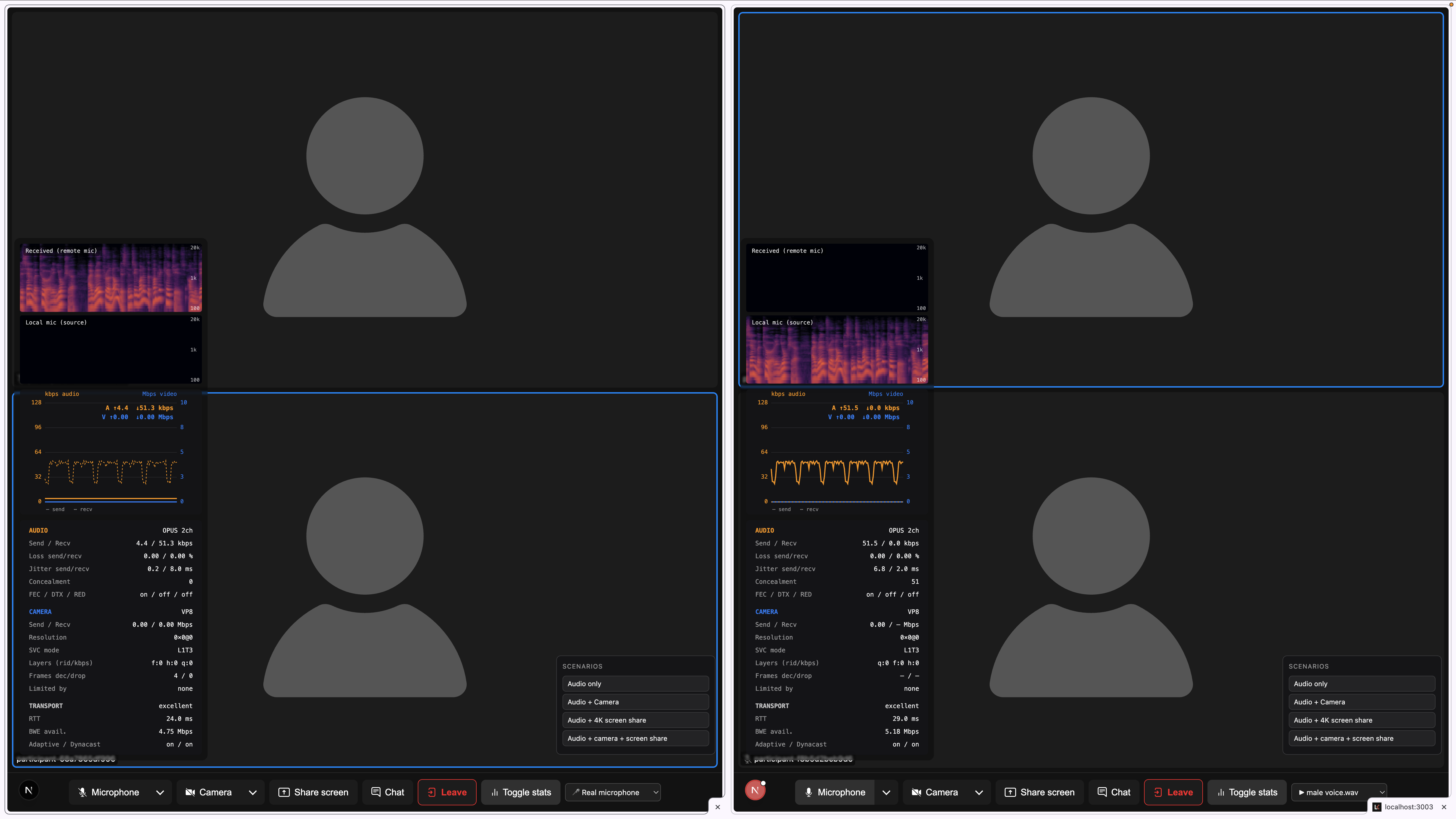
The graphic above shows two browser windows side-by-side, sending a recording of human speech from the right window to the left, with no video track on either side. I let the scenario run for about a minute; the looping audio file causes the periodic pattern in the kbps graph.
Results from a 60-second run:
- Audio sent: ~50.0 kbps
- Audio received: ~50.0 kbps
- Audio loss: 0.00%
- Audio jitter: ~7 ms
- Audio RTT: ~27 ms
Second scenario: audio + camera#
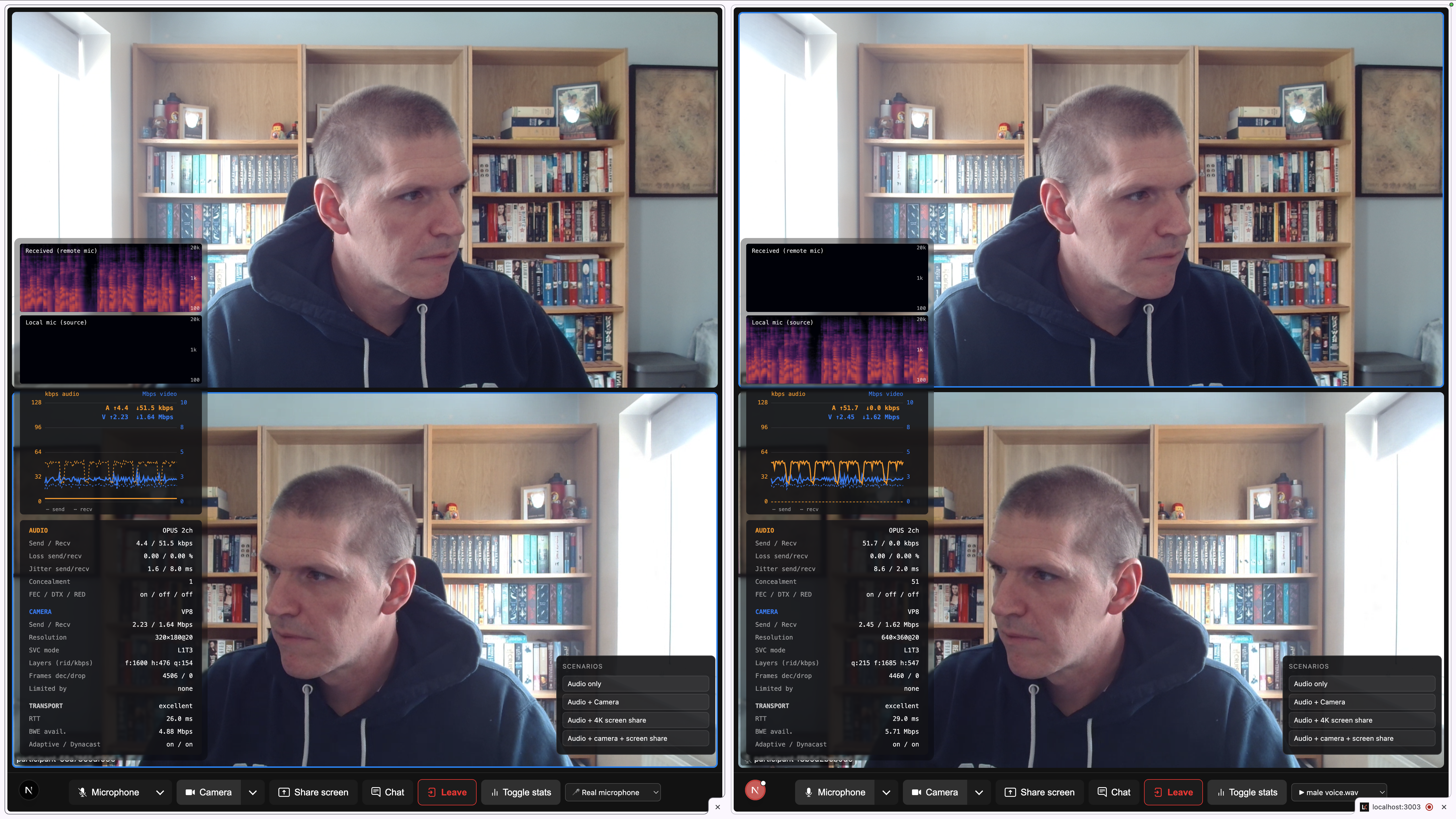
This scenario repeats the baseline, but with my 720p webcam enabled. To clarify, you're seeing the sender and receiver side-by-side (audio travelling from the right window to the left). Each participant sees both themselves and the other participant, top and bottom, which is why there are four camera panes visible.
Results:
- Audio sent / received: substantively unchanged from baseline
- Audio loss, jitter, RTT: unchanged from baseline
- Video sent: ~2.3 Mbps
- Video received: ~1.6 Mbps
Final scenario: audio + camera + screen share#
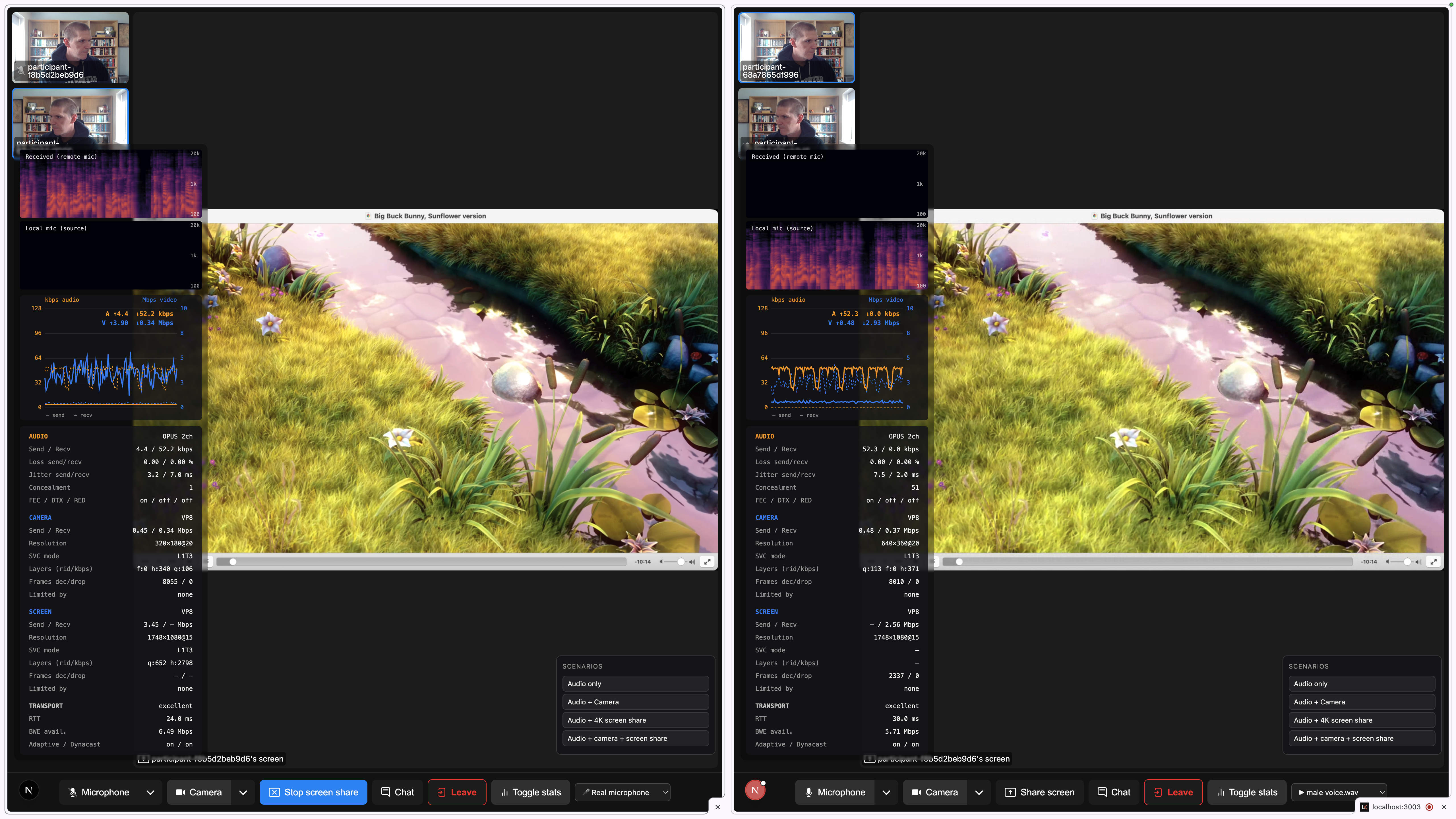
This scenario repeats the previous one, but with the participant on the left also sharing their screen.
Results:
- Audio sent / received: again, substantively unchanged from baseline
- Audio loss, jitter, RTT: unchanged from baseline
- Video sent: ~3.9 Mbps across both tracks*
- Video received: ~2.8 Mbps*
*LiveKit automatically reduced the webcam bandwidth to accommodate the larger screen share.
In summary#
My ad-hoc tests align with my expectations: I did not see any degradation of the audio track as I added video content to the stream.
LiveKit automatically reduced my webcam bandwidth when it competed with the screen share, showing the adaptive stream and dynacast settings were effective. The audio track quality stayed unaffected throughout.
Caveats#
This wasn't a scientific test, and wasn't designed to be. Some honest limitations:
- I should test with geographically separated participants.
- I should test with more than two participants.
- I only measured audio bandwidth, loss, and jitter; no other audio quality metrics.
- I only used a single audio sample (human speech).
- I didn't test other codecs or audio settings.
- I only tested under "ideal" network conditions.
- I only tested on a high-spec MacBook; resource-constrained clients may behave differently.
- I didn't compare performance against other conferencing platforms.
Reproduce my results#
This is not an "official" test, but you can find the modified Meet sample used in this blog on GitHub.
- Clone, run
pnpm install, set your LiveKit credentials in.env.local, then runpnpm dev. - Download a male speech file from the SQAM samples.
- Launch the app in two or more tabs, providing the LiveKit server URL and a unique token for each tab.
- Click through the three scenarios in the scenario controller panel and watch the bitrate chart.
If you're experiencing audio issues with your LiveKit solution, join the LiveKit developer community to share what you're seeing.