With WebRTC you can live stream video from a canvas. This post is a step-by-step guide which shows you how. We use LiveKit’s WebRTC stack to build a real-time application for sending canvas video. Check out the full code.
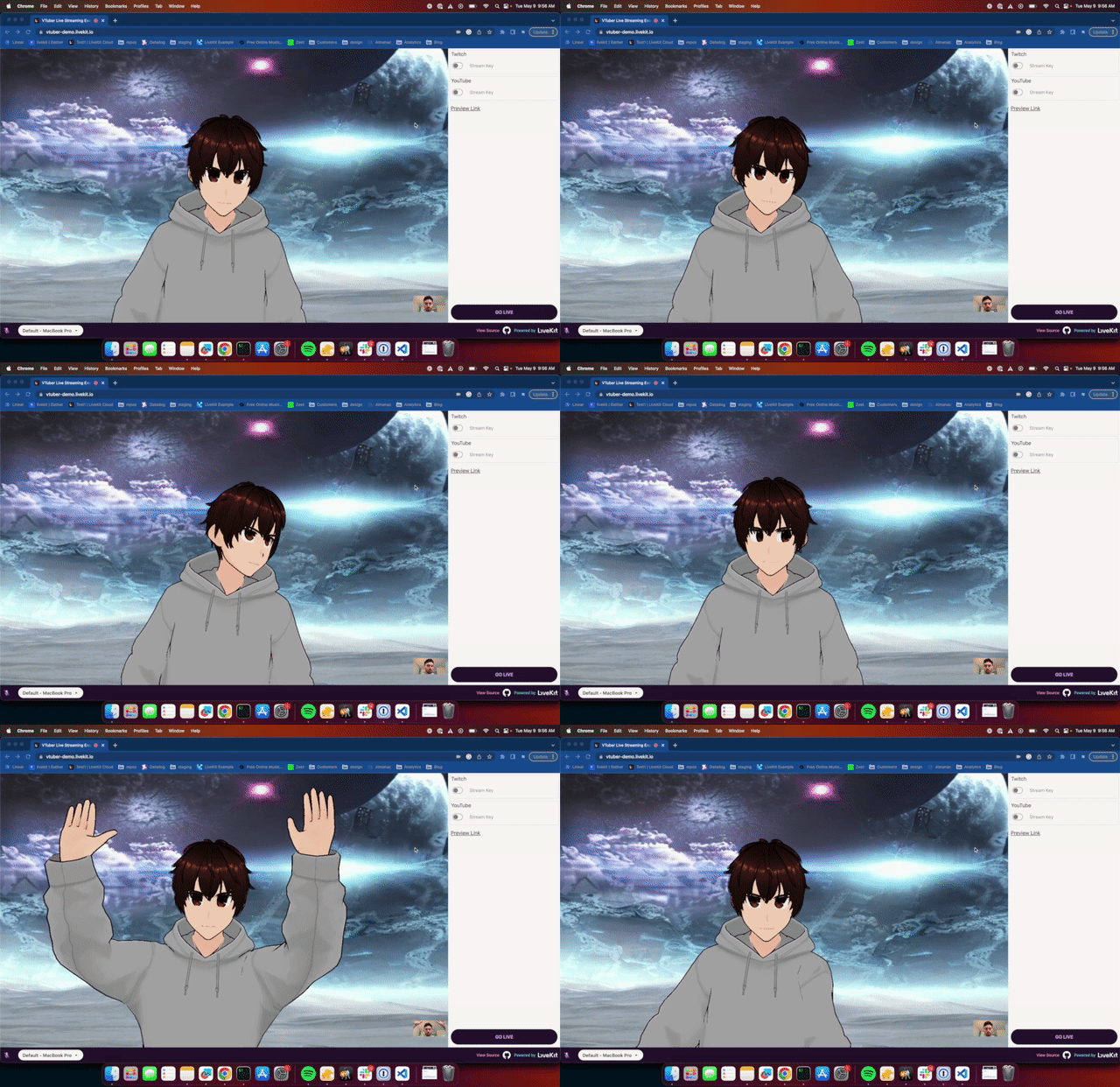 VTuber Sample App Gif
A lot of people know WebRTC as the technology that powers video chats on web. This is great for things like Google Meet, but it can be used to build much more than simple conference calls.
In fact, anything you can put on a canvas (that’s a lot of things!) can be sent as video into a WebRTC session.
Before we go into the details, note that the techniques here should apply generally to any stack. We use LiveKit to simplify the publishing flow. Follow this mini tutorial to learn how to set up your own LiveKit project.
Capturing a canvas using captureStream()Link to this section
WebRTC works on the concept of MediaStreams which are…uhhh…streams of media. In order to send a canvas into a session, we need to get a MediaStream from the canvas. Luckily, this is super easy using the HTMLCanvasElement.captureStream() api.
Let’s create a simple canvas that draws a circle and then create a MediaStream from it:
1export const CircleCanvasPublisher() {2const canvasRef = useRef<HTMLCanvasElement | null>(null);3const mediaStreamRef = useRef<MediaStream | null>(null);45// Draw a circle6useEffect(() => {7if(!canvasRef.current) return;8const ctx = canvasRef.current.getContext("2d");9ctx.beginPath();10ctx.arc(canvasRef.current.width / 2, canvasRef.current.height / 2, 50, 0, 2 * Math.PI);11ctx.fillStyle = "blue";12ctx.fill();13}, []);1415// Create MediaStream16useEffect(() => {17if(mediaStreamRef.current || !canvasRef.current) return;1819// Create 30fps MediaStream20mediaStreamRef.current = canvasRef.current.captureStream(30);21}, [])2223return (24<canvas width={300} height={300} ref={canvasRef} />25)26}
In the above snippet we:
- Created a canvas and stored a reference to it
- Drew a small circle to the canvas (because why not?)
- Created a
MediaStreamfrom the canvas at 30 frames per second and stored a reference to it
Now that we’ve got the MediaStream. All that’s left is to publish it to your session. With LiveKit this is is just a couple lines of code:
1// At the top of the component2const { localParticipant } = useLocalParticipant();34// In the useEffect that creates the MediaStream5const publishedTrack = mediaStreamRef.current.getVideoTracks()[0];6localParticipant.publishTrack(publishedTrack, {7name: 'video_from_canvas',8source: Track.Source.Unknown,9});
Putting it all togetherLink to this section
And, voila! That’s how simple it is to send a canvas as video. We used the same technique on a WebGL canvas for our VTuber streaming app:
Here’s the full code including some additional code to create a session using LiveKit:
1import { useEffect, useRef, useCallback } from "react";2import { Track } from "livekit-client";3import { useLocalParticipant } from "@livekit/components-react";45export const CircleCanvasPublisher() {6const canvasRef = useRef<HTMLCanvasElement | null>(null);7const mediaStreamRef = useRef<MediaStream | null>(null);8const { localParticipant } = useLocalParticipant()910// Draw a circle11useEffect(() => {12if(!canvasRef.current) return;13const ctx = canvasRef.current.getContext("2d");14ctx.beginPath();15ctx.arc(canvasRef.current.width / 2, canvasRef.current.height / 2, 50, 0, 2 * Math.PI);16ctx.fillStyle = "blue";17ctx.fill();18}, []);1920// Create MediaStream21useEffect(() => {22if(mediaStreamRef.current || !canvasRef.current) return;2324// Create 30fps MediaStream25mediaStreamRef.current = canvasRef.current.captureStream(30);2627// Publish the canvas video28const publishedTrack = mediaStreamRef.current.getVideoTracks()[0]29localParticipant.publishTrack(publishedTrack, {30name: "video_from_canvas",31source: Track.Source.Camera32})33}, [])3435return (36<canvas width={300} height={300} ref={canvasRef} />37)38}
1import { LiveKitRoom } from "@livekit/components-react";2import { CircleCanvasPublisher } from "@/components/CircleCanvasPublisher";34type RoomProps {5token: string6wsUrl: string7}89export const Room = ({token, wsUrl}: RoomProps) => {10return (11<LiveKitRoom token={token} serverUrl={wsUrl} connect={true}>12<CircleCanvasPublisher />13</LiveKitRoom>14)15}
Join usLink to this section
You should now have everything you need to publish canvas media in a WebRTC session. If you have any feedback on this post or end up building something cool using or inspired by it, pop into the LiveKit Slack community and tell us. We love to hear from folks!