Test your voice agents with non-production deployments
Non-production deployments let you run your agent alongside production under a different name, so you can test a change on real infrastructure before it reaches your users.
Once a voice agent is live, you eventually need somewhere to run a change before it goes out: to try a new model against real infrastructure before it reaches callers, to let a teammate hear a prompt change, or to run two of them side by side and compare.
Until now that meant standing up a whole second agent, with its own project, API keys, and secrets to keep in sync. It works, but it's a lot of setup for another instance of code you've already deployed, and the two drift the moment you update one and not the other.
A non-production deployment is your agent running under a different name: the same image as production, in the same project, with the same secrets. You can have several at once, and creating one takes a single command.
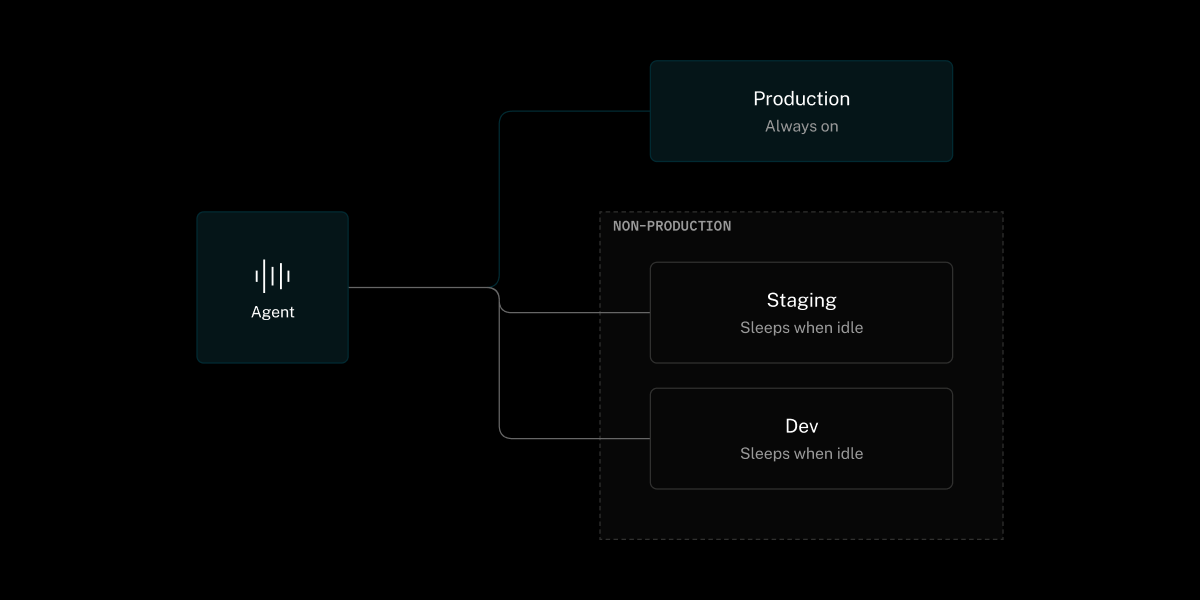
How a non-production deployment behaves#
Every agent has one reserved deployment called production. It's created with the agent, it's the default target for every command, and once your agent is deployed it stays running. The ones you add are the interesting part.
A non-production deployment runs the same container image as production. You don't build something separate. You point a build at a name, and it comes up next to the others. It lives in the same project, shares the agent's secrets, and you reach it with one flag: --deployment <name>. Leave the flag off and you're working with production.
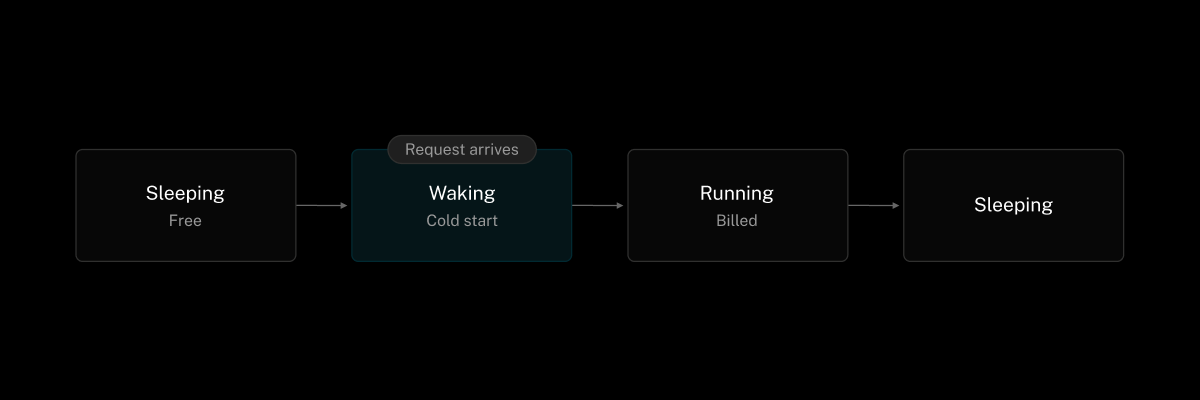
Non-production deployments are also cheap to keep around. One sleeps when nobody is using it and wakes on the next request. While it sleeps it costs you nothing, and while it's awake its compute rolls into your agent's existing bill. So a staging deployment you touch twice a week sits idle and free the rest of the time.
| Behavior | production | Non-production deployments |
|---|---|---|
| Startup | Stays warm on paid plans | Cold start on first request |
| Idle | Keeps running on paid plans | Sleeps |
| First request after sleeping | n/a | Wakes on demand |
| Redeploy | Drains active sessions | Stops active sessions immediately |
| Rollback | Drains active sessions | Not supported |
Those last two rows are the ones to plan around. Redeploying a non-production deployment stops its active sessions right away, and rollback is production-only. Production rolls over gracefully and gives active sessions up to an hour to finish. Keep traffic you can't interrupt on production, and treat non-production deployments as places to iterate.
One agent, one set of secrets#
Secrets belong to the agent, and every deployment of that agent sees them. For example, if your agent calls OpenAI as an external model provider, set OPENAI_API_KEY once and production, staging, and every other deployment read the same value. There's nothing to copy between places and nothing to keep in sync.
When a non-production deployment needs a different value, say a separate billing key for testing or a different provider for one use case, your agent picks it at runtime. Each deployment knows its own name through the LIVEKIT_AGENT_DEPLOYMENT environment variable. The value is the deployment name for non-production deployments and is empty for production, so you branch on that:
1import os23from livekit.agents import JobContext45def resolve_openai_key() -> str:6# Empty string means production.7deployment = os.environ.get("LIVEKIT_AGENT_DEPLOYMENT", "")89if deployment == "staging":10return os.environ["STAGING_OPENAI_API_KEY"]11return os.environ["OPENAI_API_KEY"]1213async def entrypoint(ctx: JobContext):14openai_key = resolve_openai_key()15# ... configure your agent with openai_key
The same idea in Node.js:
1function resolveOpenAIKey(): string {2// Empty string means production.3const deployment = process.env.LIVEKIT_AGENT_DEPLOYMENT ?? '';45if (deployment === 'staging') {6return process.env.STAGING_OPENAI_API_KEY!;7}8return process.env.OPENAI_API_KEY!;9}
That same variable is also useful when a non-production deployment needs slightly different runtime behavior. Read it at the top of your agent and you can test a new prompt, model, or integration behind a named deployment, while production keeps using the stable path.
Working with deployments from the CLI#
create, deploy, promote, logs, and delete all take an optional --deployment flag. Pass it to target a non-production deployment, leave it off and the command applies to production. To bring one up from the same code, build and push the image under a name:
1lk agent deploy --deployment staging
From there, use the same flag for the rest of the lifecycle: tail logs for a specific non-production deployment, promote its tested image to production, or delete it when you're done. (lk agent status, versions, and list don't take the flag. They show every deployment in a column instead.) The full command reference lives in the docs, but the pattern is always the same.
One flag to be careful with: lk agent delete without --deployment deletes the entire agent, production included. Always pass the name when you only mean to remove a non-production deployment.
Sending a call to a non-production deployment#
Your agent code doesn't change. LiveKit Cloud tells the agent which deployment it's running as, and the SDK handles the rest.
This does need a recent SDK: livekit-agents 1.6 or later for Python, @livekit/agents 1.7.1 or later for Node. On older versions it comes up as production instead, so calls meant for it never arrive and it starts taking real traffic. Upgrade before you create one.
To reach a non-production deployment, set deployment next to agent_name wherever you dispatch. Leave it off and you get production.
The quickest way to put a real call on one is a token:
1lk token create --join --open meet --agent steve-agent --deployment staging
The same field is on the dispatch API and on token-embedded dispatch, so whichever path you already use works the same way.
Promotion in CI#
Because every deployment lives in one project under one set of keys, you can express a release flow as branch rules. Run the CLI in your workflow and pick the target from the branch: merge to main updates a staging deployment, merge to a release branch updates production:
1name: Deploy agent2on:3push:4branches:5- main6- release7paths:8- 'voice-agent/**'910jobs:11deploy:12runs-on: ubuntu-latest13concurrency:14group: deploy-${{ github.ref_name }}15cancel-in-progress: true16env:17LIVEKIT_URL: ${{ secrets.LIVEKIT_URL }}18LIVEKIT_API_KEY: ${{ secrets.LIVEKIT_API_KEY }}19LIVEKIT_API_SECRET: ${{ secrets.LIVEKIT_API_SECRET }}2021steps:22- uses: actions/checkout@v423- run: curl -sSL https://get.livekit.io/cli | bash2425- name: Deploy to ${{ github.ref_name == 'release' && 'production' || 'staging' }}26working-directory: voice-agent27# main -> staging, release -> production (no flag targets production)28run: |29if [ "${{ github.ref_name }}" = "release" ]; then30lk agent deploy31else32lk agent deploy --deployment staging33fi
To require a human before production, put that job behind a GitHub environment with required reviewers. The GitHub environment and the deployment name are independent, so you can gate production without changing how staging ships.
Good to know#
Deployments are available on Ship and above. Each plan grants a set number of non-production deployments per agent, 2 on Ship and 5 on Scale. One counts against the limit whether it's awake or asleep, so delete it to free a slot.
You create and manage deployments from the CLI. In the dashboard, you can pick a deployment when dispatching through the Agent Console or a SIP dispatch rule, and the agent detail page shows which deployment each version is running. One boundary to set expectations on today: production is the deployment that emits metrics to Agent Observability, so use logs to inspect a non-production deployment in the meantime. Per-deployment metrics are coming.
Try it#
If you're on Ship or Scale, take an agent you've already deployed and bring up a staging deployment next to it with one command:
1lk agent deploy --deployment staging
For the full reference, including every flag, the exact LIVEKIT_AGENT_DEPLOYMENT behavior, and the dispatch fields, see the agent deployments guide.