---
title: "Introducing Private Links on LiveKit"
date: "2026-09-22"
authors: "Varun Khurana"
tags: "product"
---
# Introducing Private Links on LiveKit
An agent's impact comes from both its overall performance and the complexity of the tasks it executes. Low latency combined with high scalability and reliability enables enterprise-wide deployment of humanlike agents, but those agents can only perform complex, high-value tasks if they have access to internal data and systems that provide context and enable taking actions.
This puts enterprises in regulated industries like financial services or healthcare in something of a bind if they lack a secure way to enable that access: they can deploy agents for superficial, lower-value use cases, or build and maintain their own secure connections to enable deeper access.
Private Links solve this dilemma by letting you make private requests to sensitive internal resources via your cloud network. With Private Links, you can unlock complex use cases for LiveKit-hosted agents — the gold standard in low latency, scalability, and reliability — without maintaining any public IPs, inbound firewall rules, or VPN infrastructure.
## How Private Links work
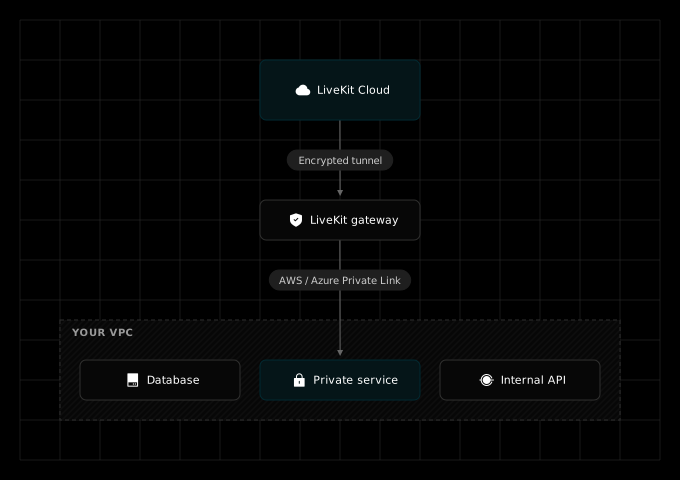
Private Links work via a fully managed, encrypted tunnel between your agents and your cloud network. When you create a Private Link, LiveKit provisions a gateway in a LiveKit-managed VPC in the same cloud region as your resource and connects it to your VPC via the cloud provider's native private connectivity.
When your agent makes a request, it connects to a generated `.link` hostname that only resolves from your deployed agent environment. That traffic is routed through an encrypted WireGuard tunnel to a LiveKit gateway running in the same cloud region as your resource. The request then enters your VPC via AWS PrivateLink or Azure Private Link and reaches your service through your load balancer.
This diagram is illustrative and shows the AWS path.
Your resources are never exposed to the public internet, and you have nothing to maintain. You approve the connection once on your side, and LiveKit manages everything else.
Private Links strictly support TCP-based connections secured with TLS. Connections must negotiate TLS before app data is requested, including protocols like PostgreSQL that use their standard TLS handshake. Insecure TCP and general UDP traffic aren't supported.
### Private Links vs. IP allowlisting vs. VPC peering
When an agent needs to reach a service you own, teams usually reach for one of two conventional approaches: put the service behind a public endpoint and allowlist the caller's IPs, or peer networks so the agent runs inside your VPC. Private Links are a third path. Here's how they compare.
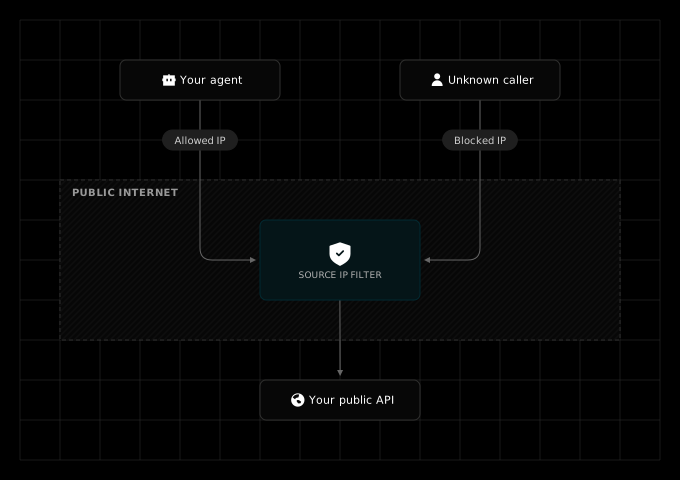
**IP allowlisting** is for public endpoints with a fixed set of callers. The agent connects over the internet and a source-IP filter narrows who can reach the service. But the service still has a public IP, and the IP lists you maintain drift as infrastructure changes on either side. It also depends on your agent platform publishing stable egress IPs, which many hosted platforms don't. Narrower, but still public.
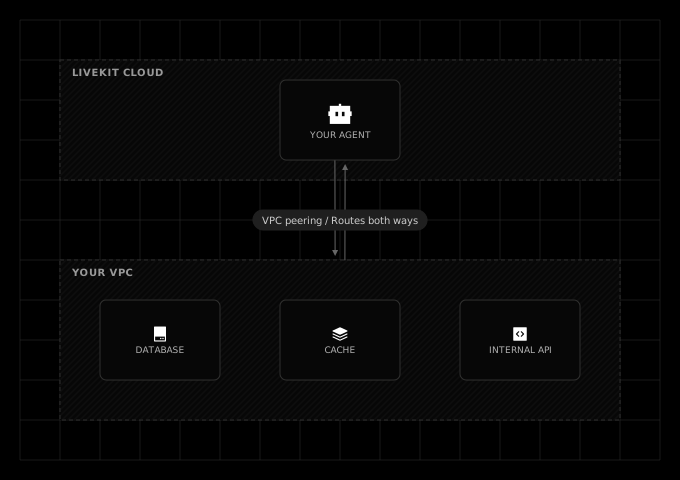
**VPC peering** is for two networks you own and fully trust. Routes go both ways and your agent can reach your entire VPC, which is often far more access than one service needs. You maintain the CIDR planning, route tables, and security groups that come with joining two networks.
**Private Links** are for resources that must never be public: a Postgres database, a Redis cache, an internal API behind a load balancer. LiveKit provisions a gateway in your cloud region and connects to your service through [AWS PrivateLink](https://aws.amazon.com/privatelink/) or [Azure Private Link](https://azure.microsoft.com/en-us/products/private-link). The service keeps no public IP and no inbound rules, and the connection is scoped to one service rather than your network. You approve the connection once; LiveKit runs the rest.
**Private Links are the right fit if:**
- Your agent needs data or systems that compliance won't let you expose publicly (common in financial services and healthcare).
- You want to grant access to one specific service, not a network.
- You'd rather approve a connection once than maintain IP lists, VPNs, or peering config.
If the API is public anyway and you control the caller set, allowlisting is simpler. If you need broad access between networks you fully own, peering is the tool. For anything that must stay private, use a Private Link.
## Setting up Private Links
You can set up Private Links via the [LiveKit CLI](https://docs.livekit.io/reference/developer-tools/livekit-cli/) or in the LiveKit Dashboard. More extensive documentation is available for [AWS](https://docs.livekit.io/deploy/agents/private-links/aws/) and [Azure](https://docs.livekit.io/deploy/agents/private-links/azure/).
Before starting, confirm you have:
- A LiveKit Cloud project configured in the LiveKit CLI.
- A LiveKit agent deployed in the target LiveKit region.
### On AWS
1. Put a Network Load Balancer in front of your service, with a listener on the port your agent needs. AWS PrivateLink endpoint services require an NLB.
2. Create a VPC endpoint service pointing at that NLB, leave acceptance required turned on, and copy the service name it returns.
3. Grant LiveKit access to the endpoint service by allowing the principal `arn:aws:iam::266092630715:root`. Scoping to just this principal means only the expected LiveKit connection can reach your service.
4. Create the link with the CLI, passing the endpoint service name. `--region` is your LiveKit agent region; the AWS region is derived automatically from the service name. Save the returned Private Link ID.
```bash
lk --project agent private-link create \
--name \
--region \
--port \
--endpoint ''
```
5. Back in AWS, accept the new pending endpoint connection from account `266092630715`.
### On Azure
1. Copy the Resource ID of the resource your agent needs to reach, along with the Azure region it lives in.
2. Create the link with the CLI, specifying both your LiveKit agent region (`--region`) and the Azure region (`--cloud-region`) hosting the resource. `--port` must match your service's listening port. Save the returned Private Link ID.
```bash
lk --project agent private-link create \
--name \
--region \
--cloud-region \
--port \
--endpoint ''
```
3. In Azure, approve the new pending private endpoint connection.
### For both clouds
1. Wait for the link to report healthy, either from the CLI or in the dashboard under your project's Settings → Private links, where you'll also find the generated `.link` hostname.
```bash
lk --project agent private-link health-status --id
```
2. Test connectivity from a deployed agent in the same LiveKit region. The `.link` hostname won't resolve from your laptop.
## Additional considerations
- Private Links are priced at $50 per link, plus $0.10 per GB of bandwidth transmitted in both directions.
- Each project is currently limited to 3 Private Links per region. Contact LiveKit support if you need more.
- Private Links are available in a handful of regions today. Your LiveKit agent must be in the same LiveKit region as your LiveKit Private Link for connections to work. The available LiveKit regions are:
| Region | LiveKit region |
| ---------- | -------------- |
| US East | `us-east` |
| EU Central | `eu-central` |
Your AWS or Azure resource doesn't need to be in the same region as your agent, but placing it near your LiveKit region reduces latency. LiveKit supports connecting via Private Link to the following AWS and Azure regions today. If your cloud provider region isn't listed, contact LiveKit support to request availability.
| Region | AWS region |
| ---------- | -------------- |
| US East | `us-east-1` |
| US West | `us-west-2` |
| EU Central | `eu-central-1` |
| Region | Azure region |
| --------------- | ---------------- |
| East US | `eastus` |
| West US | `westus` |
| Belgium Central | `belgiumcentral` |
| UK South | `uksouth` |
## Getting started
Private Links are available today for US and EU-deployed agents on LiveKit Cloud. You can create your first link via the [LiveKit CLI](https://docs.livekit.io/reference/developer-tools/livekit-cli/) as shown above, or in the [LiveKit Dashboard](https://cloud.livekit.io/projects/p_/settings/private-links) under your project Settings page → Private links.
For more detailed setup and troubleshooting steps, see the [Private Links documentation](https://docs.livekit.io/deploy/agents/private-links/) and its setup guides for [AWS](https://docs.livekit.io/deploy/agents/private-links/aws/) and [Azure](https://docs.livekit.io/deploy/agents/private-links/azure/), and share your feedback in the [LiveKit Community](https://community.livekit.io/).